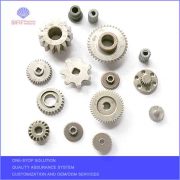
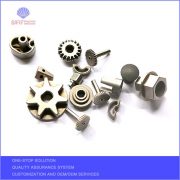
Investment casting is usually a method of obtaining castings by coating several layers of refractory material on the surface of wax molds, allowing them to harden and dry. The wax molds are melted off to form a shell, which is then baked and poured. Due to the high dimensional accuracy and surface finish of the obtained castings, it is also known as “investment casting precision casting”. This article mainly analyzes the manufacturing methods, advantages, and development history of investment casting comprehensively.
The first process of investment casting production is to manufacture investment molds, which are used to form models of refractory shell cavities. Therefore, in order to obtain castings with high dimensional accuracy and surface smoothness, investment molds themselves should have high dimensional accuracy and surface smoothness. In addition, the performance of the investment mold itself should also be as simple and feasible as possible for subsequent processes such as shell making. In order to obtain the high-quality investment molds required above, in addition to good molding, it is also necessary to choose suitable mold making materials and reasonable mold making processes.
The advantages of investment casting are mainly reflected in two aspects:
1. Due to the high dimensional accuracy and surface smoothness of investment castings, mechanical processing work can be reduced. Only a small amount of machining allowance can be left in the parts with higher requirements, and even some castings can be used without mechanical processing, leaving only grinding and polishing allowance. It can be seen from this that using investment casting method can greatly save machine equipment and processing time, and greatly save metal raw materials.
2. Investment casting can cast complex castings of various alloys, especially high-temperature alloy castings. Production using investment casting technology can not only achieve mass production, ensuring the consistency of castings, but also avoid stress concentration caused by residual tool lines after mechanical processing.
The development history of investment casting:
Investment casting has been developing at a relatively fast pace for half a century since it became suitable for industrial production in the 1940s. In 1996, the world’s investment casting industry accounted for 50% in North America, 25% in Europe, 20% in Asia, and the remaining 5%. In North America, the United States accounted for 95%, while in Europe, the United Kingdom accounted for 42%, France accounted for 26%, Germany accounted for 19%, Italy accounted for 7%, and the remaining 6%. Nowadays, investment casting is widely used in almost all industrial sectors, especially in electronics, petroleum, chemical, energy, transportation, light industry, textiles, pharmaceuticals, medical equipment, pumps, and valves, except for aviation and weapons. Due to the unique advantages of investment casting in the industrial production field, the current development speed of investment casting is extremely fast.
https://www.sifit.cn/wp-content/uploads/2019/01/Sifit-ico-200-147.png00SifitMachineryhttps://www.sifit.cn/wp-content/uploads/2019/01/Sifit-ico-200-147.pngSifitMachinery2024-03-07 04:00:502024-09-25 04:26:01Comprehensive Analysis of Investment Casting
Get Your Microsoft Office 2010 Activation Key Confirmation ID Now
To use Microsoft Office 2010, you need a valid activation key. This key is essential for software verification and ensures that you have a genuine software activation. When you purchase a Microsoft Office 2010 license, you receive this key, which is crucial for the activation process.
If you are looking to retrieve your confirmation ID, it is important to follow the steps provided by Microsoft. This ID is necessary for confirming that your software is activated correctly. Remember, having a genuine software activation not only helps you access all features but also keeps your software secure and up to date.
Make sure to keep your Microsoft Office 2010 activation key confirmation ID safe, as it may be needed for future installations or troubleshooting.
How to Activate Microsoft Office 2010 Using a Product Key
Activating Microsoft Office 2010 is an important step to ensure that your software is genuine and fully functional. To start the process, you will need to enter your product key. This key is essential for product key validation and Microsoft product activation. Here’s how to do it:
Locate your product key: This is usually found on the card inside the Office package or in the confirmation email if you purchased it online.
Open Office 2010: Start any Office application like Word or Excel.
Enter the product key: Follow the prompts to enter your product key. This is the product key entry step.
Complete the activation: Once you enter the key, follow the on-screen instructions to finish the activation process.
Activating via Internet
Activating Microsoft Office 2010 via the internet is a quick and easy method. Here’s how you can do it:
Connect to the internet: Make sure your device is connected.
Start the activation process: Open any Office application and choose the activation option.
Use the Microsoft activation server: The software will connect to the Microsoft activation server to validate your product key.
Follow the prompts: If you need Office 2010 activation help, the prompts will guide you through the process.
Activating via Telephone
If you prefer to activate Microsoft Office 2010 via telephone, you can do so by following these steps:
Choose the telephone activation option: When prompted during the activation process, select this option.
Call the activation support number: You will be provided with a number to call for assistance.
Provide the necessary information: Be ready to give your product key and any other required details for activation troubleshooting.
Complete software registration: Once you receive the confirmation from the support agent, your software will be registered and activated.
Understanding the Microsoft Office 2010 Activation Key Confirmation ID
The Microsoft Office 2010 Activation Key Confirmation ID is a vital part of the confirmation ID process. This ID helps verify the software authenticity of your Office 2010 installation. When you activate your software, you receive this unique ID, which confirms that your copy of Office 2010 is genuine.
Keeping this ID safe is important because it may be required for future activations or support.
What is the Microsoft Office 2010 Confirmation ID?
The Microsoft Office 2010 Confirmation ID is generated during the activation ID generation process. This ID serves as proof that your software is not only activated but also helps in software piracy prevention.
Here’s a quick list of what the Confirmation ID does:
Validates your software: Ensures you have a genuine copy.
Supports troubleshooting: Needed for any activation issues.
Prevents unauthorized use: Helps in stopping software piracy.
“Having a Confirmation ID is essential for a smooth experience with Microsoft Office 2010.”
How to Check Microsoft Office 2010 Activation Status
To check your Microsoft Office 2010 activation status, you can follow a few simple steps. This process is important for ensuring that you have the latest Microsoft Office updates and that your Office 2010 software validation is up to date.
Here’s how to check your activation status:
Open any Office application: Start with Word or Excel.
Go to Account settings: Click on the File menu and select Account.
Look for activation status: Here, you will see if your Office is activated or not.
By regularly checking your activation status, you can ensure that your software remains valid and receives necessary updates.
Many users have questions about Microsoft Office licensing and how to access various features. Here are some common queries:
What is the 25 digit key for Microsoft?
The 25 digit key is your product key, which is essential for activating your Microsoft Office software. This key is usually found on the packaging or in the confirmation email you received when you purchased the software.
How do I find my Office 2010 activation key?
To find your Office 2010 activation key, check the original packaging or the email confirmation from your purchase. If you bought it online, the key should be in your account on the Microsoft website.
How do I find my Microsoft 2010 confirmation ID?
Your Microsoft 2010 confirmation ID is provided during the activation process. If you need to retrieve it, you can check the activation window or contact Microsoft Office 2010 support for assistance.
Key Features of Office 2010
Here are some notable features of Office 2010 that you can access once your software is activated:
Improved User Interface: A more intuitive design that enhances user experience.
Collaboration Tools: Features that allow multiple users to work on documents simultaneously.
Enhanced Multimedia Support: Better tools for embedding videos and images.
Microsoft Office 2010 Support Options
If you encounter any issues, Microsoft Office 2010 support is available to help you. Here are some options:
Online Help Center: Access articles and guides on common issues.
Community Forums: Join discussions with other users and find solutions.
Customer Support: Reach out directly to Microsoft for personalized assistance.
“Having access to Microsoft Office 2010 support can make troubleshooting much easier.”
https://www.sifit.cn/wp-content/uploads/2019/01/Sifit-ico-200-147.png00SifitMachineryhttps://www.sifit.cn/wp-content/uploads/2019/01/Sifit-ico-200-147.pngSifitMachinery2024-01-23 23:35:192025-04-13 15:12:12microsoft office 2010 activation key confirmation id ✓ Activate Office 2010 in 3 Easy Steps
Download Bluetooth Driver for Windows 11 – Get It Now!
I want to help you with the best way to download the Bluetooth driver for Windows 11. If you need to connect your devices, having the right software is super important. First, I recommend checking the Bluetooth software for Windows 11. This software ensures that your computer can communicate with other Bluetooth devices smoothly.
To make things easier, you can download the Bluetooth driver for Windows 11 free from trusted websites. This way, you won’t have to worry about paying for something you can get at no cost. It’s essential to ensure that your device is compatible with Windows 11 Bluetooth compatibility. This will help you avoid any issues when trying to connect your gadgets.
Lastly, I want to emphasize the importance of Windows 11 Bluetooth support. This support helps you troubleshoot any problems you might encounter while using Bluetooth. So, don’t wait any longer! Download the Bluetooth driver for Windows 11 today and enjoy seamless connectivity with your devices.
When I think about managing Bluetooth on my Windows 11 computer, I know that having the right drivers is crucial. I need to install Bluetooth drivers on Windows 11 to ensure my devices work properly. These drivers help my computer recognize and communicate with Bluetooth devices.
I also keep an eye on the latest updates. Regular windows 11 bluetooth driver updates help improve performance and fix any bugs. It’s important for me to stay updated so that my Bluetooth management is smooth and efficient.
Download Bluetooth Driver for Windows 11 64 Bit
To get started, I can download the 64-bit bluetooth drivers for windows 11 easily. This version is specifically designed for my system, ensuring compatibility and better performance. I just need to follow these steps:
Visit a trusted website.
Look for the option to download bluetooth driver for windows 11 64 bit.
Follow the installation instructions.
By doing this, I can ensure my Bluetooth devices connect without any issues.
Download Bluetooth Driver for Windows 10 64-Bit
Sometimes, I also need to download bluetooth driver for windows 10 64-bit. This is useful if I have friends or family using Windows 10 and want to help them out. The process is similar:
Go to a reliable source.
Find the option to Download Bluetooth driver for Windows 10.
Install it by following the prompts.
This way, I can assist others in getting their Bluetooth devices up and running.
Intel Bluetooth Driver for Windows 11
If I have Intel devices, I specifically look for intel bluetooth drivers for windows 11. These drivers are optimized for Intel hardware, ensuring the best performance. I can easily find the Intel Bluetooth driver for Windows 11 by:
Searching on the official Intel website.
Selecting the correct version for Windows 11.
Downloading and installing it.
This ensures that my Intel devices work seamlessly with Bluetooth technology.
Program Available in Other Languages
I find it exciting that many programs are available in different languages. This makes it easier for everyone to use them, no matter where they are from. One of the great things about Windows 11 is its improved windows 11 bluetooth functionality. This means I can connect my devices without any hassle, no matter what language I speak.
The windows 11 bluetooth features are designed to be user-friendly. They help me manage my Bluetooth connections easily, allowing me to enjoy my devices without confusion.
Last Month’s Downloads
Last month, I noticed a lot of people were downloading updates for their Bluetooth drivers. These updates can really boost windows 11 bluetooth performance. I love how these enhancements make my Bluetooth connections faster and more reliable.
The windows 11 bluetooth enhancements also include new features that make it easier to connect multiple devices at once. This is super helpful when I want to switch between my headphones and speakers quickly.
Windows 11 Compatibility
When it comes to using Bluetooth, I always check for windows 11 bluetooth device compatibility. This ensures that my devices will work well with my computer. It’s important to know that not all devices are compatible, so I make sure to do my research.
Additionally, I pay attention to windows 11 bluetooth hardware support. This means I need to have the right hardware in my computer to support all the cool Bluetooth features. By keeping these things in mind, I can enjoy a smooth Bluetooth experience on my Windows 11 device.
When I look into the app specs for Bluetooth on Windows 11, I find that there are many options available. The windows 11 bluetooth options allow me to connect various devices like headphones, speakers, and even my phone. I can easily access the windows 11 bluetooth settings to manage these connections.
These settings help me troubleshoot any issues I might face while using Bluetooth. I appreciate how user-friendly these options are, making it simple for me to connect and disconnect devices as needed.
Download Bluetooth Driver for Windows 11 Free
If I want to ensure my Bluetooth works perfectly, I need to download bluetooth driver for windows 11 free. This is a straightforward process. I can follow these steps:
Search for a reliable website.
Click on the option to Download Bluetooth driver for Windows 11 HP.
Follow the installation instructions to set it up.
By doing this, I can enjoy seamless Bluetooth connectivity without spending any money.
Download Bluetooth Driver for Windows 11 HP
For my HP devices, I specifically look for hp bluetooth drivers for windows 11. These drivers are tailored to work best with my HP hardware. To get them, I simply:
Visit the official HP website.
Find the section for Download Bluetooth driver for Windows 11 HP.
Download and install the driver.
This ensures my HP devices connect smoothly and efficiently.
Download Bluetooth Driver for Windows 11 AMD
If I have an AMD device, I need to find the right drivers too. I look for amd bluetooth drivers for windows 11 to ensure compatibility. Here’s how I do it:
Go to the AMD support page.
Select the option to Download Bluetooth driver for Windows 11 AMD.
Install the driver following the provided instructions.
This way, I can make sure my AMD devices work well with Bluetooth technology.
FAQ
When I have questions about Bluetooth on Windows 11, I often look for answers in the FAQ section. Here are some common questions I encounter:
What is Windows 11 Bluetooth troubleshooting?
Windows 11 Bluetooth troubleshooting helps me identify and fix problems with my Bluetooth connections. If my devices aren’t connecting, I can follow a few steps to resolve the issue.
How do I install a Bluetooth driver?
To install a Bluetooth driver, I usually download it from a trusted website. After downloading, I run the installer and follow the on-screen instructions to complete the installation.
How do I download Bluetooth driver in Windows 11?
I can download the Bluetooth driver in Windows 11 by visiting the manufacturer’s website or using Windows Update. This ensures I get the latest version for my device.
How do I add Bluetooth to Windows 11?
Adding Bluetooth to Windows 11 is simple. I go to the settings, find the Bluetooth section, and turn it on. If my device supports Bluetooth, it should appear in the list of available devices.
How do I fix missing Bluetooth on Windows 11?
If I find that Bluetooth is missing on Windows 11, I check if the Bluetooth driver is installed. If not, I can download it. I also make sure that Bluetooth is enabled in the settings.
Tip: Always keep your Bluetooth drivers updated to avoid connectivity issues!
Common Bluetooth Issues and Solutions
Issue
Solution
Bluetooth not turning on
Check if the Bluetooth setting is enabled.
Devices not connecting
Restart both devices and try reconnecting.
Bluetooth driver missing
Download and install the latest driver.
Poor connection quality
Move closer to the device or remove obstacles.
By knowing these answers, I can easily manage my Bluetooth connections on Windows 11!
https://www.sifit.cn/wp-content/uploads/2019/01/Sifit-ico-200-147.png00SifitMachineryhttps://www.sifit.cn/wp-content/uploads/2019/01/Sifit-ico-200-147.pngSifitMachinery2024-01-23 23:35:192025-04-15 00:48:17Download Bluetooth Driver for Windows 11 ✓ Easy Install ➔ Intel & AMD Support
https://www.sifit.cn/wp-content/uploads/2019/08/Custom-Powder-Metal-Sintered-Gear-pic.jpg640640SifitMachineryhttps://www.sifit.cn/wp-content/uploads/2019/01/Sifit-ico-200-147.pngSifitMachinery2022-11-09 06:56:022022-11-09 06:56:02Powder metallurgy products are widely used in shipbuilding industry
https://www.sifit.cn/wp-content/uploads/2022/10/iron-fillings-in-the-threads.png606719SifitMachineryhttps://www.sifit.cn/wp-content/uploads/2019/01/Sifit-ico-200-147.pngSifitMachinery2022-10-25 07:35:462024-09-25 04:37:51To avoid Iron filings remain in the threads of powder metallurgy parts
https://www.sifit.cn/wp-content/uploads/2019/04/visting.jpg10051600SifitMachineryhttps://www.sifit.cn/wp-content/uploads/2019/01/Sifit-ico-200-147.pngSifitMachinery2019-04-16 03:45:492024-09-25 05:08:08Welcome Sweden clients checking their self lubricated brass bushings production